
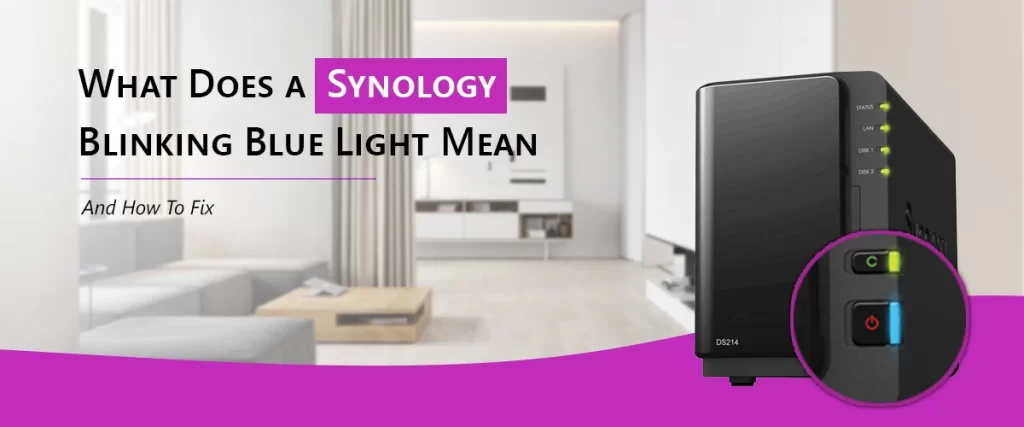
You are well aware of how crucial a Synology NAS is for safeguarding and storing your critical documents, images, backups, and company information if you possess one. Therefore, it might be concerning when you see a Synology blinking blue light out of the blue. Fortunately, this blue light doesn’t necessarily indicate a catastrophe; rather, it’s your NAS alerting you to a problem.
We’ll define the Synology flashing blue light, discuss the most frequent causes, and provide step-by-step instructions to restore your NAS’s functionality in this article.
The True Significance of the Synology Blue Light
The blue LED indication on a Synology NAS conveys the boot status and system power. Among the most important things to comprehend is that:
- Solid blue light indicates that the system is turned on and functioning properly.
- Synology blinking blue light indicates that the system is attempting to startup but has not been successful.
Therefore, the NAS is stuck in the beginning phase and hasn’t finished the boot procedure if you observe a Synology blue light flashing.
Typical Causes of a Synology Blinking Blue Light
Numerous problems might cause synology blinking blue light. The most typical reasons are listed below:
- Unfinished or unsuccessful boot sequence
- Unstable voltage or a malfunctioning power source
- RAM that is defective or not properly installed
- Hard drive connectors that are loose
- Hard drive malfunction
- Operating system corruption (DSM)
- A malfunctioning USB device attached to the NAS
- A hardware issue with the motherboard
Determining the appropriate remedy requires an understanding of the probable cause.
Fixing a Synology Blue Light That Blinks
Proceed from the simplest to the most complex troubleshooting methods. You will often be able to resolve the issue without the requirement for data recovery or maintenance.
1. Shut down and restart safely.
Occasionally, the NAS just doesn’t initialize correctly.
- Holding down the power knob for five to ten seconds will cause it to switch off.
- For two minutes, unplug the power cord.
- Restart the NAS and reconnect the power.
- The problem is fixed if the blinking stops and turns solid blue.
2. Examine the cables and power supply.
One typical cause is unstable electrical power.
- Make sure the power adapter is the genuine Synology model.
- Try using a different power source.
- Steer clear of power strips that have surge problems.
5. Examine the RAM installed.
Startup may be hampered by faulty or malfunctioning memory.
- After the factory-installed RAM module, remove all other RAM modules.
- To test, restart the NAS.
- The extra RAM is probably the problem if it boots.
- The module itself can be faulty if even the default RAM is unable to boot.
6. Reinstall DSM while retaining data
Reinstalling DSM can resolve the problem if the operating system is corrupted but the hard disks are in good condition.
- Open Synology Web Assistant in a web browser.
- To reinstall DSM without formatting drives, adhere to the instructions.
- Your applications and data are still intact.
7. Reset the System as a Last Resort
Reset synology router might be helpful if nothing else works. Use this just if your NAS isn’t booting and you can’t access DSM at all.
- Without removing shared folders, boot functionality can be restored with a reset.
- This is also helpful if you need to reset the settings on your Synology router, but keep in mind that you shouldn’t start troubleshooting with a reset.
Concluding Remarks
Hardware failure or data loss are not usually indicated by a Synology blinking blue light. Power, boot difficulties, or a small hardware connection issue are the most common causes of the problem. You may significantly improve your chances of swiftly and securely repairing your NAS by carefully following the recommended changes.
To avoid future problems, keep your NAS in a ventilated, steady power environment and often check the health of the system. Synology products continue to be among the most dependable data storage systems on the market when properly maintained.
FAQs
A blue light that keeps blinking often indicates that the NAS is stuck during startup. Power problems, loose drives, defective RAM, or DSM corruption might be the reason.
Not always. Most of the time, data is safe. Instead of data destruction, the blinking light often signals hardware setup or starting issues. When troubleshooting, do not format drives.
Reconnect power, remove USB devices, reseat disks, and begin with a safe shutdown. Check RAM or reinstall DSM without formatting if the system still won’t start up.
only when simple troubleshooting is unsuccessful. Get in touch with Synology support or experts if the problem seems to be due to a motherboard failure, a serious disk failure, or no boot response at all.
Indeed. Use steady power, steer clear of abrupt shutdowns, keep an eye on the health of your drive, implement any suggested upgrades, and keep your ventilation system in good working order. Hardware faults and startup failures are significantly decreased by routine system monitoring.